
Using the Secure Document Uploader
For information on how to know if the Financial Aid Office is requesting documents, review our To Do List Guide.
To use the Secure Document Uploader:
- Login to Pathway
- Once logged in, click on the Secure Document Upload tile

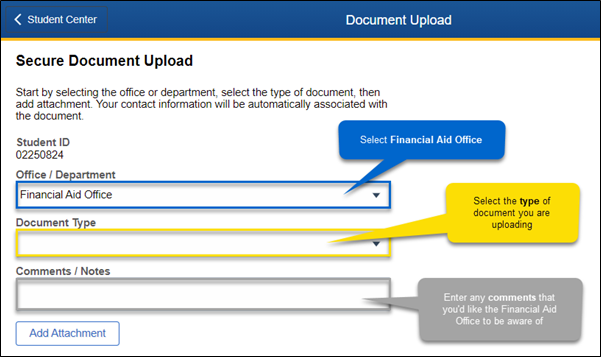
- Enter the following information to submit documents to the Financial Aid Office
-
- Office/Department: Select Financial Aid Office
- Document Type: Select the type of document you are uploading
- Comments/Notes: Enter any comments that you'd like the Financial Aid Office to be aware of
-
- Click Add Attachment
- Select the My Device tile, and locate the file you wish to attach
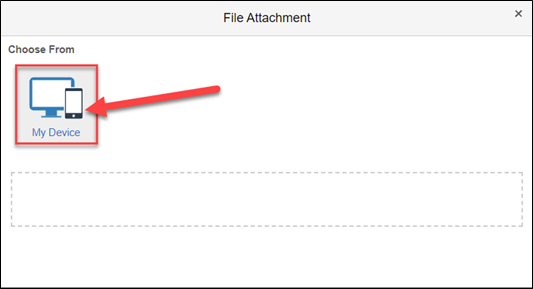
- You will see your document listed at the bottom.
- Click Upload
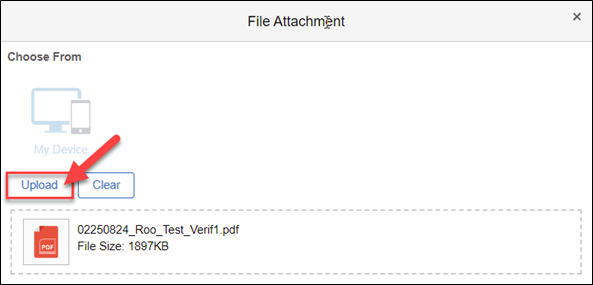
- You will receive a confirmation when the file is uploaded
- You can upload multiple files. We advise allowing the uploader a minute to process each file before uploading another
- Once your document has been received and processed by Financial Aid Office staff, you will see it marked as In-Progress on your To Do List